Set Up OneDev as an OpenID Connect Provider
OneDev can act as an OpenID Connect (OIDC) provider so other applications can offer Sign in with OneDev. This tutorial covers registration, sign-in, and revocation using a fictional web application, Team Portal.
You need a OneDev administrator account for step 1 and access to your application's OIDC settings. The application must support the authorization code flow with S256 PKCE, even when using a client secret.
The examples use https://onedev.example.com for OneDev and https://portal.example.com for Team Portal. Replace these with your own URLs and use HTTPS in production.
Click any screenshot to view it at full size.
1. Check the OneDev URL
In Administration → System Settings, set Server URL to OneDev's public HTTPS URL, including when using a reverse proxy. This is the OIDC issuer and must be reachable by the application server and users' browsers.
Open https://onedev.example.com/.well-known/openid-configuration. This discovery document should return JSON with an issuer matching Server URL. Applications use it to configure their endpoints automatically.
2. Register the Application in OneDev
From the top-right user menu, select OAuth Applications → Add New. The application belongs to the user who registers it. Other users can sign in through it and authorize access to their own accounts.
For a server application that can securely store a secret, enter:
| Field | Example | What to use |
|---|---|---|
| Name | Team Portal | A recognizable name shown on the consent screen |
| Homepage | https://portal.example.com | The application's homepage |
| Confidential Client | Enabled | Enable for a server application that can securely store a secret |
| Redirect URIs | https://portal.example.com/oauth/callback | The exact callback URL supplied by your application; one URI per line |
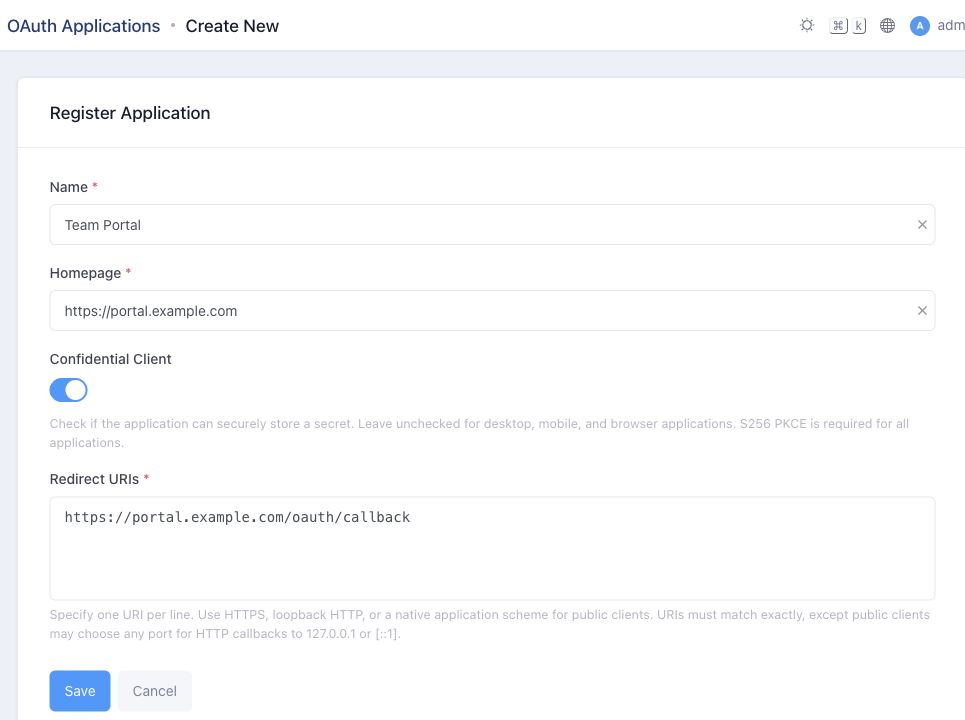
Copy the callback URL from your application's settings or documentation. It must match exactly, including the scheme, host, port, path, and query. Wildcards and URL fragments are not allowed; loopback HTTP callbacks are supported for local development.
Public and native clients
For applications that cannot keep a secret, turn off Confidential Client. These public clients receive no client secret but still require S256 PKCE.
Public native clients may use callback schemes such as com.example.app:/callback. For public clients using 127.0.0.1 or [::1] HTTP callbacks, the port may vary at runtime; all other URI components must match. Confidential clients and localhost callbacks require an exact port match.
Click Save, then copy the Client ID and, for confidential clients, Client Secret into your application's secure configuration. The secret is shown only once. If you lose it, Rotate Secret generates a replacement and revokes the application's existing authorizations.
3. Configure the Application's OIDC Client
In your application's authentication settings, add an OpenID Connect provider with these values. Field names vary by application.
| Setting | Value |
|---|---|
| Issuer / Authority | https://onedev.example.com |
| Discovery / Metadata URL | https://onedev.example.com/.well-known/openid-configuration |
| Client ID | The value copied from OneDev |
| Client Secret | The secret copied from OneDev, for confidential clients only |
| Scopes | openid profile email |
| Redirect / Callback URL | The exact URI registered in step 2 |
Use the authorization code flow with S256 PKCE, even for confidential clients.
The issuer and discovery URL are different settings; use the one your application requests.
The openid scope enables sign-in. Through the userinfo endpoint, profile supplies the user's name and username, and email supplies their primary email address and verification status. Add offline_access for continued access while the user is away, as shown in the consent screenshot below.
Browser applications need a backend for token requests: OneDev does not allow cross-origin token requests.
Custom clients and explicit endpoints
If your client asks for additional protocol settings, use:
| Setting | Value |
|---|---|
| Response type | code |
| Token endpoint authentication | client_secret_basic or client_secret_post for confidential clients; none for public clients |
| ID-token signing algorithm | RS256 |
If your client cannot discover endpoints automatically, use these paths relative to the issuer:
| Purpose | Path |
|---|---|
| Authorization | /~oauth/authorize |
| Token exchange and refresh | /~oauth/token |
| Userinfo | /~oauth/userinfo |
| Public signing keys (JWKS) | /~oauth/jwks |
| Token revocation | /~oauth/revoke |
Use an OIDC library that implements the authorization code flow and handles:
- Fresh PKCE,
state, andnoncevalues for each sign-in, with validation of the returnedstate. - Code exchange using the original redirect URI and PKCE verifier. Codes expire after two minutes and can be used only once.
- Validation of the ID token's signature, issuer, audience, expiry, and nonce.
Identify users by the issuer and stable sub claim. Fetch profile and email claims from userinfo, not the ID token. Public clients send their client_id without a secret; confidential clients must use only one client authentication method per request.
Implicit and password grants, client credentials, and dynamic client registration are not supported.
4. Test Sign-In and Consent
Start sign-in from your application. Sign in to OneDev if prompted, then review the application's identity, requested access, and return URL. Click Authorize.
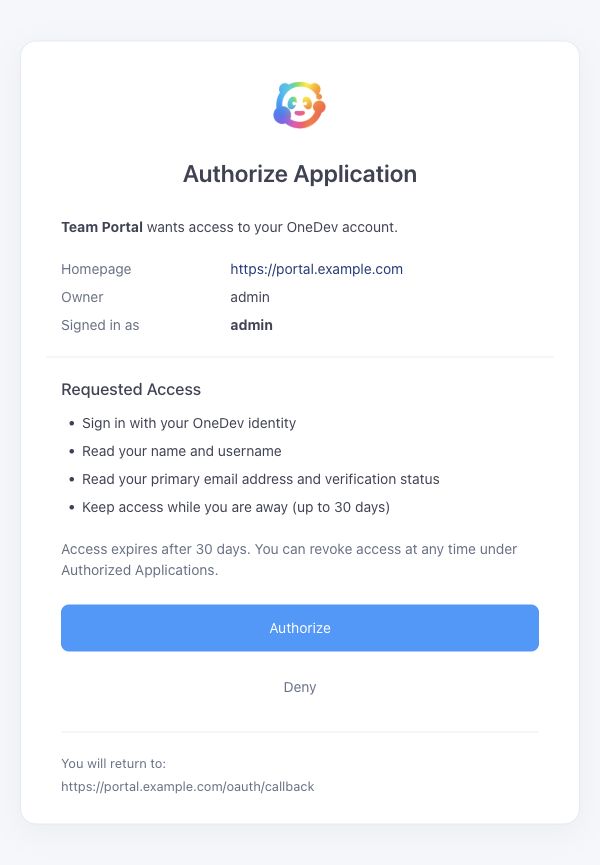
OneDev returns an authorization code to the registered callback. Your application exchanges it for tokens and signs the user in. Confirm that it shows the expected username and email. Test with a regular OneDev user before rollout.
5. Review and Revoke Access
From the user menu, select Authorized Applications → Team Portal to review its tokens, scopes, expiration dates, and permissions.
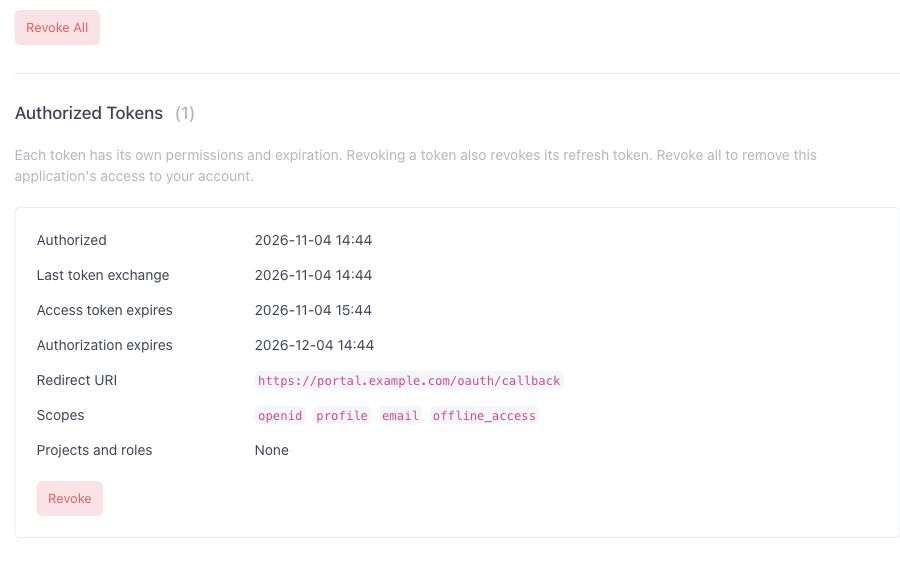
Click Revoke to revoke a token and its refresh token, or Revoke All to remove the application's access to your account. Verify that a userinfo or API request using the revoked token fails authentication.
Revocation leaves the application registered and does not end an existing session in that application. Users can sign in and grant consent again.
Token lifetime and refresh
Access tokens last at most one hour. Consent grants renewable access for up to 30 days; refreshing does not extend that deadline.
Each refresh replaces both tokens and invalidates the previous access token. Store the new pair atomically and send refresh requests one at a time. Reusing an old refresh token revokes the authorization. When refresh is no longer possible, start a new sign-in.
Optional: Authorize Project Access
For sign-in alone, use the identity scopes above. To access OneDev APIs with project roles, expand Integration and supported scopes on the application's registration page. Request the exact role scope listed there, such as role:code_reader.
The consent page then asks users to select projects they can manage. Each requested role applies to all selected projects and children that inherit settings. Access is limited by the user's permissions; losing permission to manage a project removes access to it through that authorization.
Like personal access tokens, OAuth tokens also receive default project permissions available to logged-in users. Role scopes never delegate system or account administration permissions. If renaming a role changes its scope, update the client configuration and request consent again.
Troubleshooting
| Symptom | What to check |
|---|---|
| Discovery is unavailable | Check Server URL and ensure your reverse proxy allows access to /.well-known/openid-configuration. |
| Issuer mismatch | Discovery's issuer, OneDev's Server URL, and the client's issuer must match. |
| Redirect URI is rejected | Check the exact callback URL, including the port and trailing slash. |
| PKCE or authorization request is rejected | Use the authorization code flow with S256 PKCE. Omit unsupported options such as max_age, claims, and id_token_hint. |
| Token exchange reports invalid client | Check the Client ID, secret, and authentication method. Do not send both Basic authentication and a secret in the form body. |
| Username or email is missing | Request profile email and read the claims from userinfo. |
| API access is denied | Check role scopes, selected projects, and the user's permission to manage them. |
| Refresh fails | Check for expiration, revocation, or reuse of an old refresh token. Sign in again. |
Signing Key Regeneration
OneDev manages its signing key automatically. If you need to replace it, an administrator can click Regenerate under Administration → Keys → OAuth Signing Key.
This revokes all existing authorizations but preserves application registrations. Users must sign in again, and applications must refresh their cached signing key.