Working with Two-Factor Authentication (2FA)
Require 2FA
An administrator can require two-factor authentication for every user or for members of a particular group.
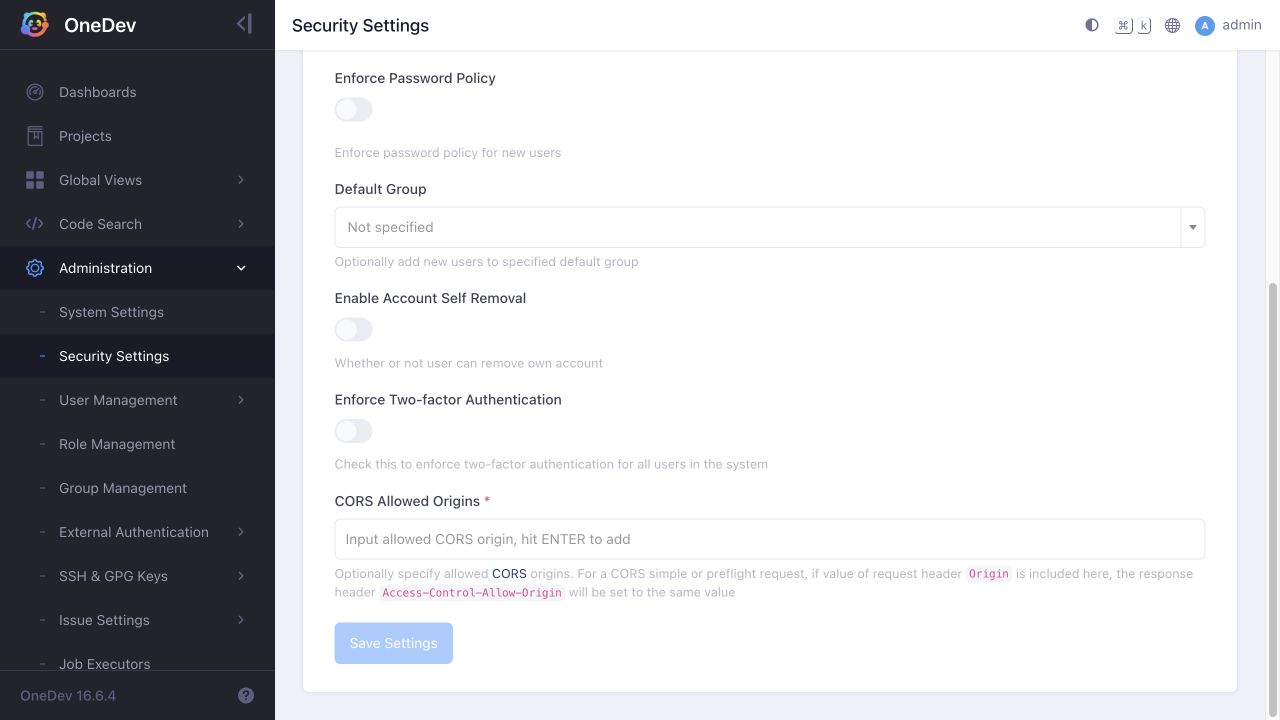
To require it globally, open Administration > Security Settings, enable Enforce Two-factor Authentication, and click Save Settings. The screenshot below shows the setting before it is enabled:
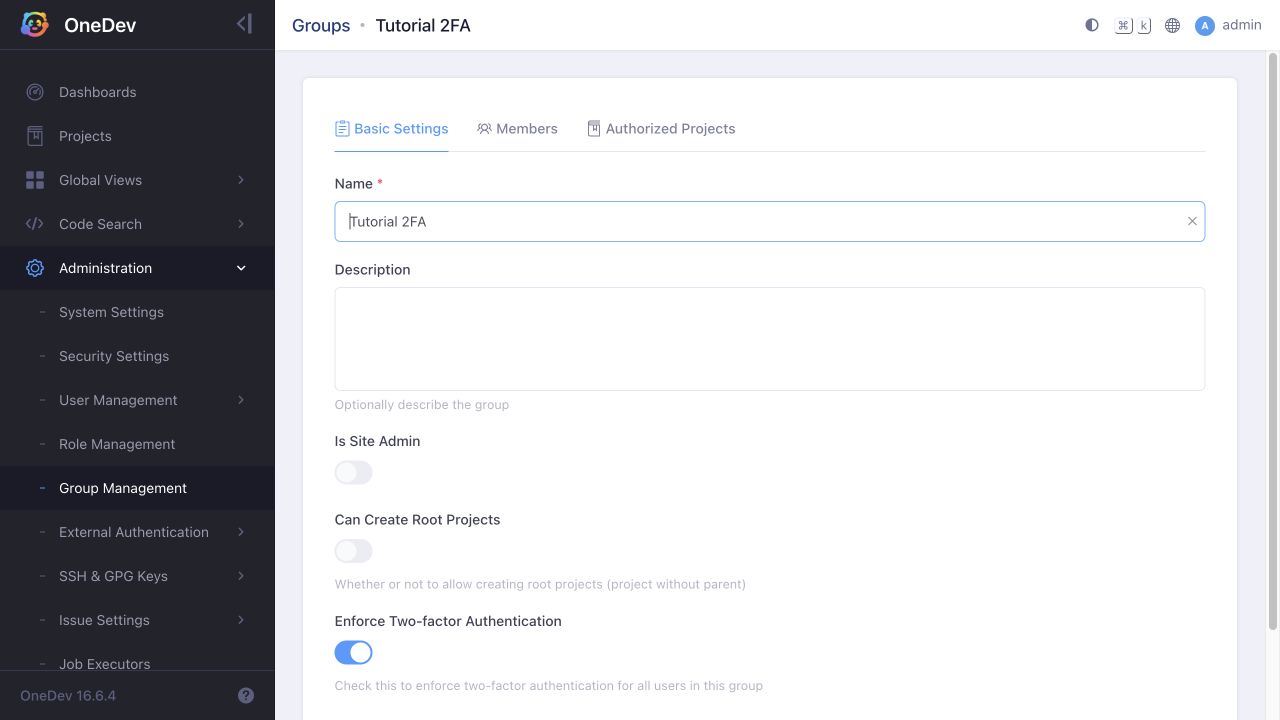
To require it for a group, open Administration > Group Management, select the group, enable Enforce Two-factor Authentication in Basic Settings, and save. Add the intended users on the group's Members tab. The example below requires 2FA only for the test group:
Enroll and sign in
When a user who must use 2FA signs in without an existing setup, OneDev displays the enrollment page:
- Scan the QR code with a TOTP authenticator, or enter the displayed secret key into the authenticator manually.
- Enter the authenticator's six-digit passcode and click Verify.
- Download and securely store the recovery codes. They provide one-time access if the authenticator is unavailable and will not be displayed again.
- Click Ok. Sign out and sign in again to verify the authenticator challenge.
Keep the QR code, secret key, and recovery codes private. They are intentionally omitted from this tutorial's screenshots.
Reset a user's 2FA
If a user loses both their authenticator and recovery codes, an administrator can open Administration > User Management > Users, select that user, and open Two-factor Authentication:
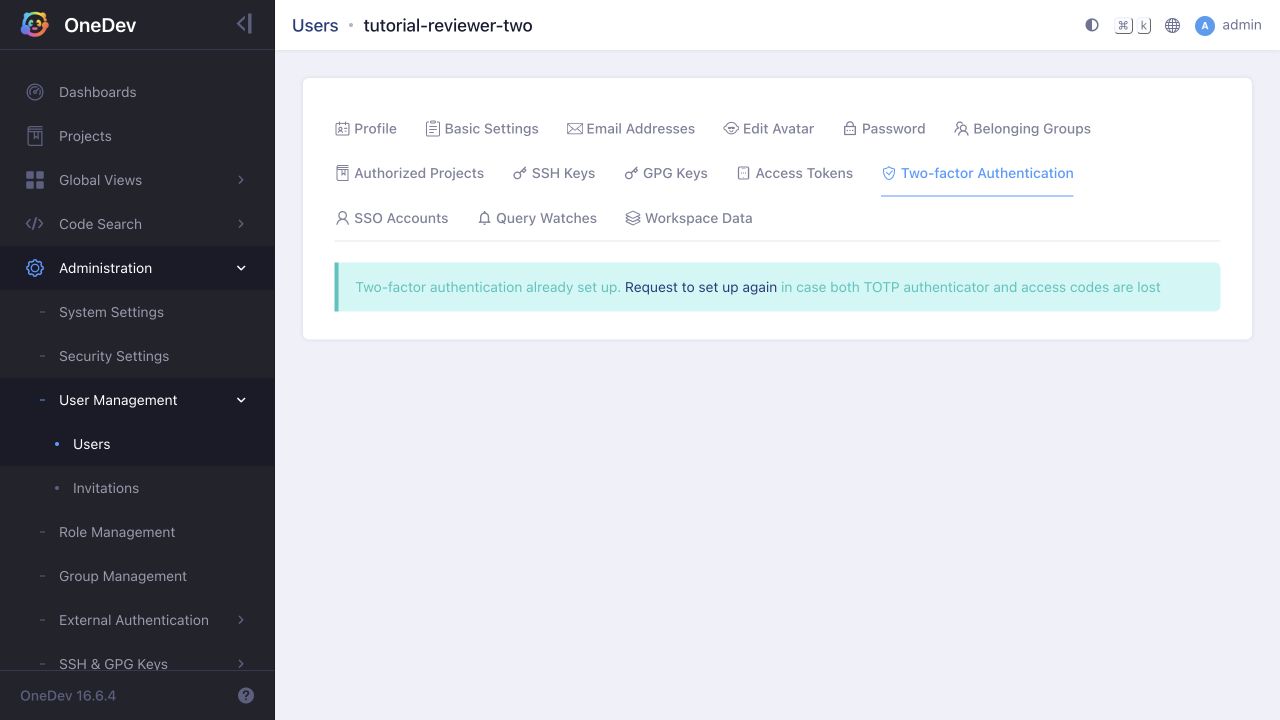
Click Request to set up again to clear that user's existing setup. Have the user sign in and enroll again, then save the new recovery codes and verify a fresh sign-in. Keep the applicable global or group enforcement enabled so the user is required to complete enrollment.