State Auto-transition
Configure automatic transitions under Administration > Issue Settings > State Transitions. Add any missing destination states under States first. Scope each rule's Applicable Issues query to the issues you intend to change.
Mark Fixed Issues as Deployed
Add a Deployed state, then add a Build is successful transition:
- From States:
Closed - To State:
Deployed - Applicable Jobs:
Deploy(replace this with your actual deployment job) - Applicable Branches:
main - Applicable Issues:
"Project" is "tutorial-issues" and fixed in current build
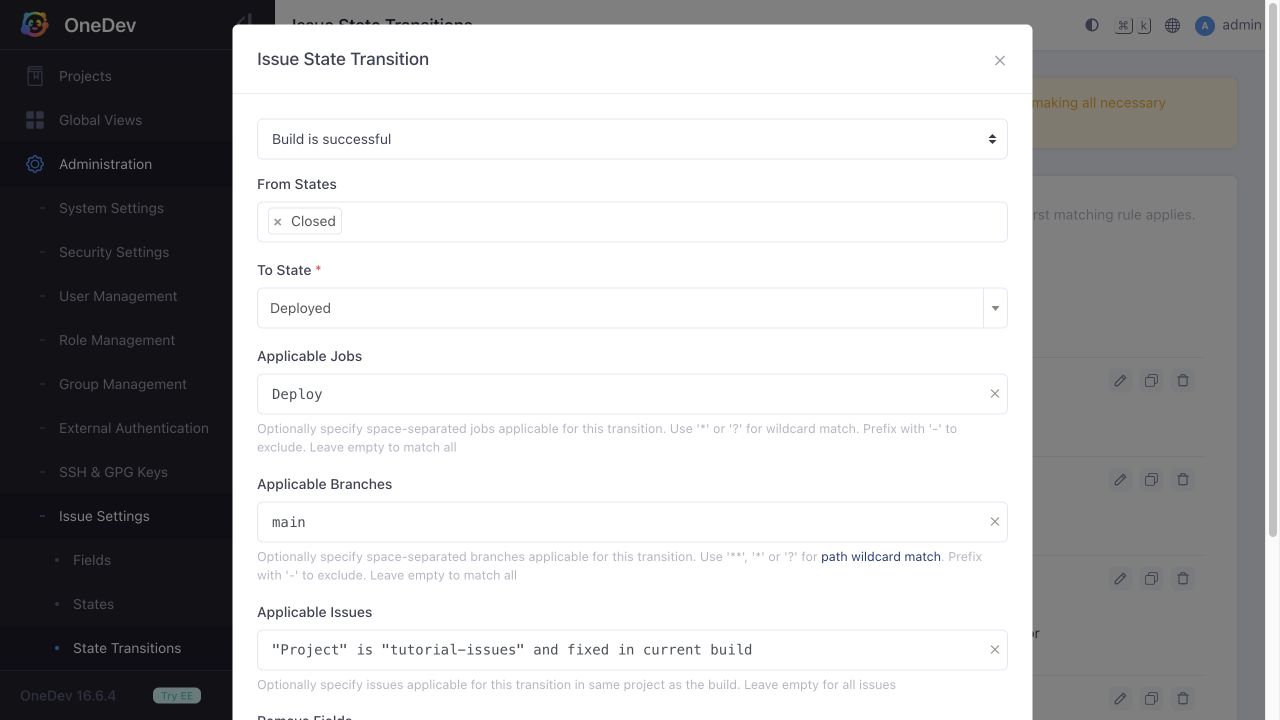
Replace the example project and branch names. Run a successful baseline deployment, then commit a fix referencing an issue, for example Fix #14: correct deployment behavior. The issue must be Closed before the deployment succeeds; the default transition for fixing commits on main or master can do this. Run the deployment job on the new commit and check the issue's state and activity.
fixed in current build selects issues fixed since the previous successful build of that job. A successful unrelated job does not establish that a deployment happened. Ensure your deployment job reports failure when deployment fails.
Move Referenced Issues to In Review
In Review and a corresponding pull-request transition already exist in a default installation. Check the existing rule before adding another one:
- Trigger: Pull request is opened or updated
- To State:
In Review - Target Branches: your integration branches, such as
main master - Applicable Issues:
fixed in current pull request
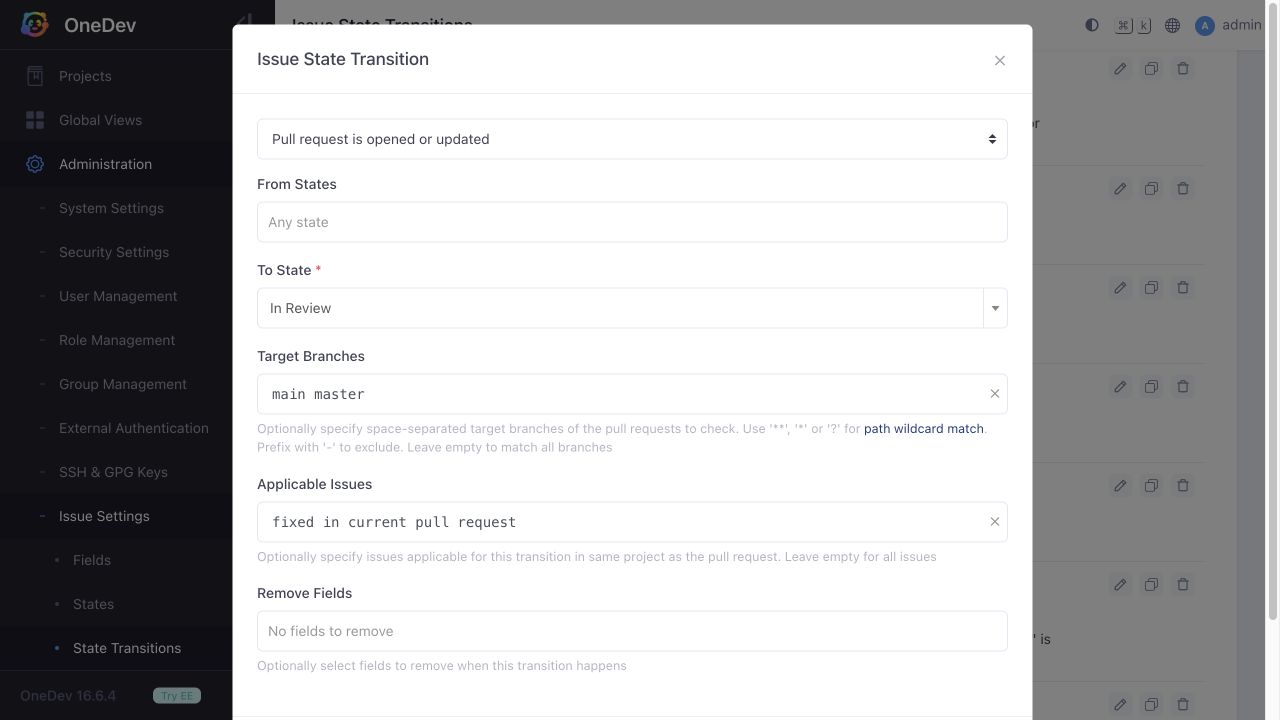
Include a fixing reference such as Fix #14 in the pull request title, description, or commits. Open the pull request against a matching branch and check the linked issue's activity. Add a From States restriction if you only want issues in particular states to enter review. See Fix Issues via Commit Message for a complete example.
Mark Inactive Issues as Idle
Add an Idle state and a No activity for some time transition:
- From States:
Open - To State:
Idle - No Activity Days: at least
1 - Applicable Issues: restrict the rule to your intended project or issue set
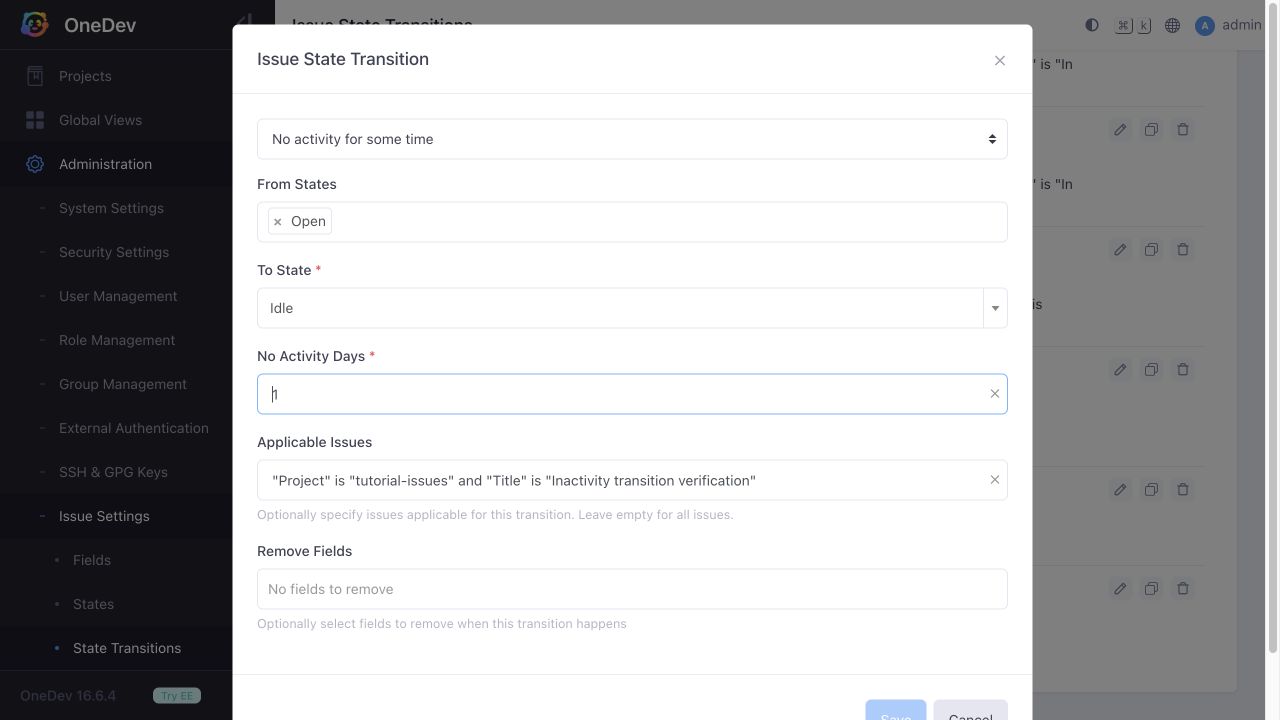
The example screenshot restricts the rule to one test issue. Inactivity uses the issue's last activity date. The server checks these rules daily at midnight, so reaching the configured duration does not immediately change the state. Keep the server running through a scheduled check after the inactivity period has elapsed, then inspect the issue's activity. Further activity before the cutoff postpones eligibility.