Batch Operation
Batch edit issues matching a query. This example reassigns open Windows issues from two users to another user.
Prerequisites
Create a Platform enumeration field with a Windows choice (see Conditional Field). Use existing accounts that have access to the project. The example uses tutorial-reviewer-one, tutorial-reviewer-two, and admin; substitute your own login names. Perform the operation as a project owner or another user with permission to edit the fields.
Reassign the issues
-
Open the project's Issues > List and enter this query:
"State" is "Open" and "Platform" is "Windows" and ("Assignees" is "tutorial-reviewer-one" or "Assignees" is "tutorial-reviewer-two")The default field name is Assignees (plural). If your installation renamed it, use its configured name. Add
and "Project" is currentto exclude issues in parent and child projects. -
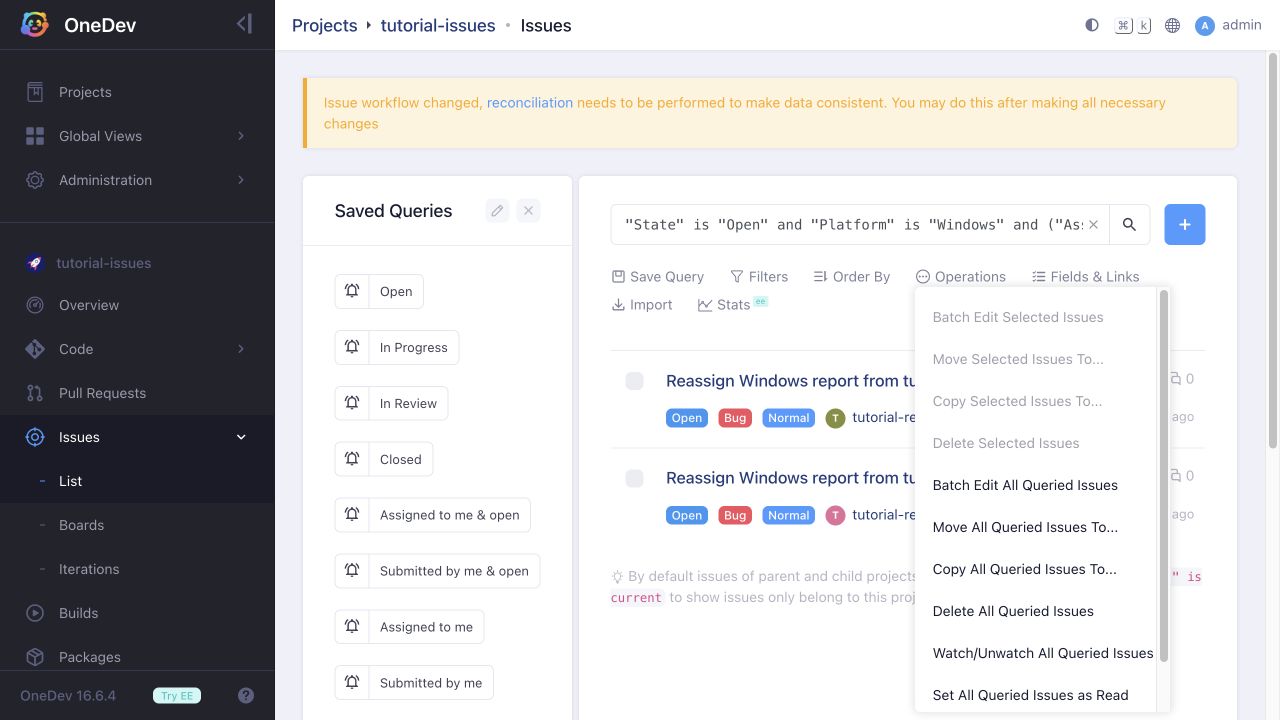
Review the matching issues, then choose Operations > Batch Edit All Queried Issues. To change only a subset, select the issue checkboxes and choose Batch Edit Selected Issues instead.
-
Select Assignees under Fields to Change. Remove the existing selected users and choose the replacement user,
adminin this example. This replaces the assignee list for every affected issue. Leave other fields unchecked and choose whether to send notifications.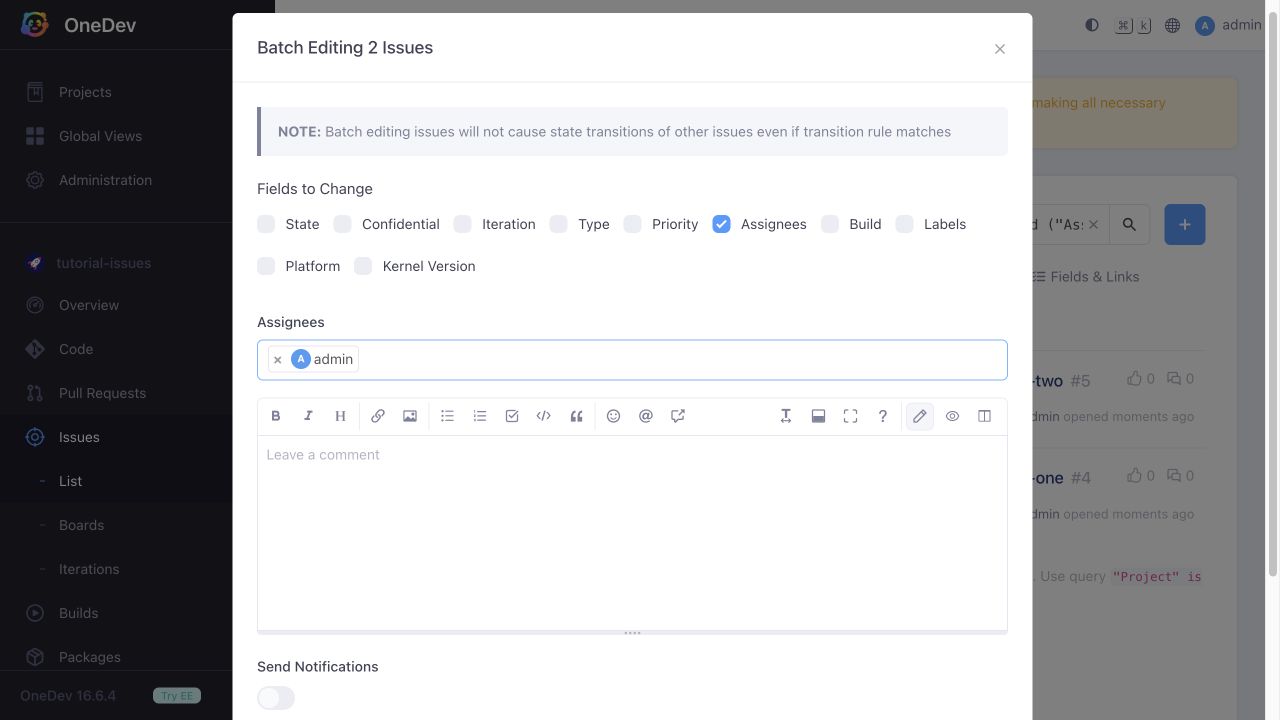
-
Click Save. The issues disappear from the original query because they no longer match its assignee filter. Query
"Assignees" is "admin"or open the issues directly to confirm the change.
Batch edits do not trigger state transitions of other issues, even when an automatic transition rule would otherwise match.