Working with Issue Links
Issue links connect related work and can drive automatic state transitions. This example uses a parent issue with two child issues.
Define the relationship
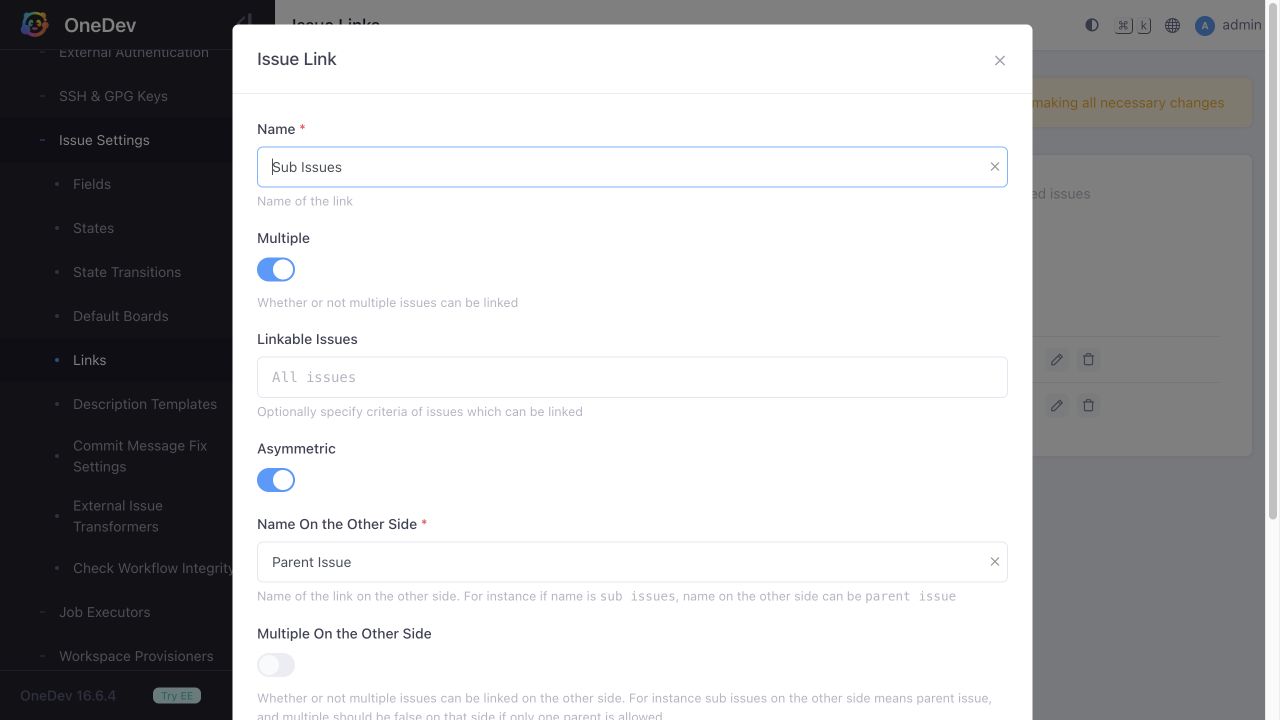
Open Administration > Issue Settings > Links. A default installation already includes Sub Issues, with Parent Issue on the other side. Reuse this definition instead of creating a duplicate. Its settings are:
- Multiple enabled: a parent can have several children.
- Asymmetric enabled, with Name On the Other Side set to Parent Issue.
- Multiple On the Other Side disabled: a child has one parent.
For non-administrators, configure the relevant role's issue-link editing permission in Administration > Role Management, and grant that role on the project. Users must also be able to access the issues being linked.
Link and query issues
Open the parent issue and choose Links > Sub Issues. Choose Create New, or Select Existing and search for existing issues. Save the selection. Each child automatically gets the reverse Parent Issue link.
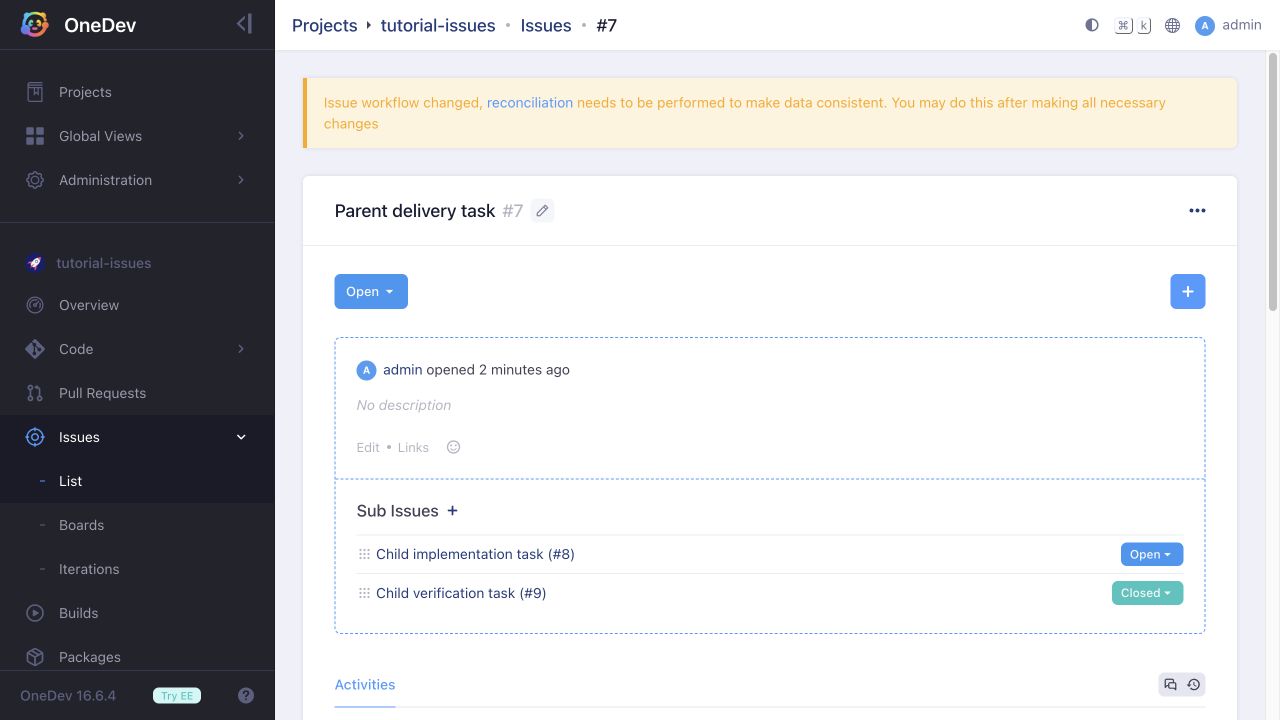
In the issue list, enable the links under Fields & Links, then expand Sub Issues to show the children. Board settings also provide Display Links.
This query finds parents with at least one open child:
any "Sub Issues" matching("State" is "Open")
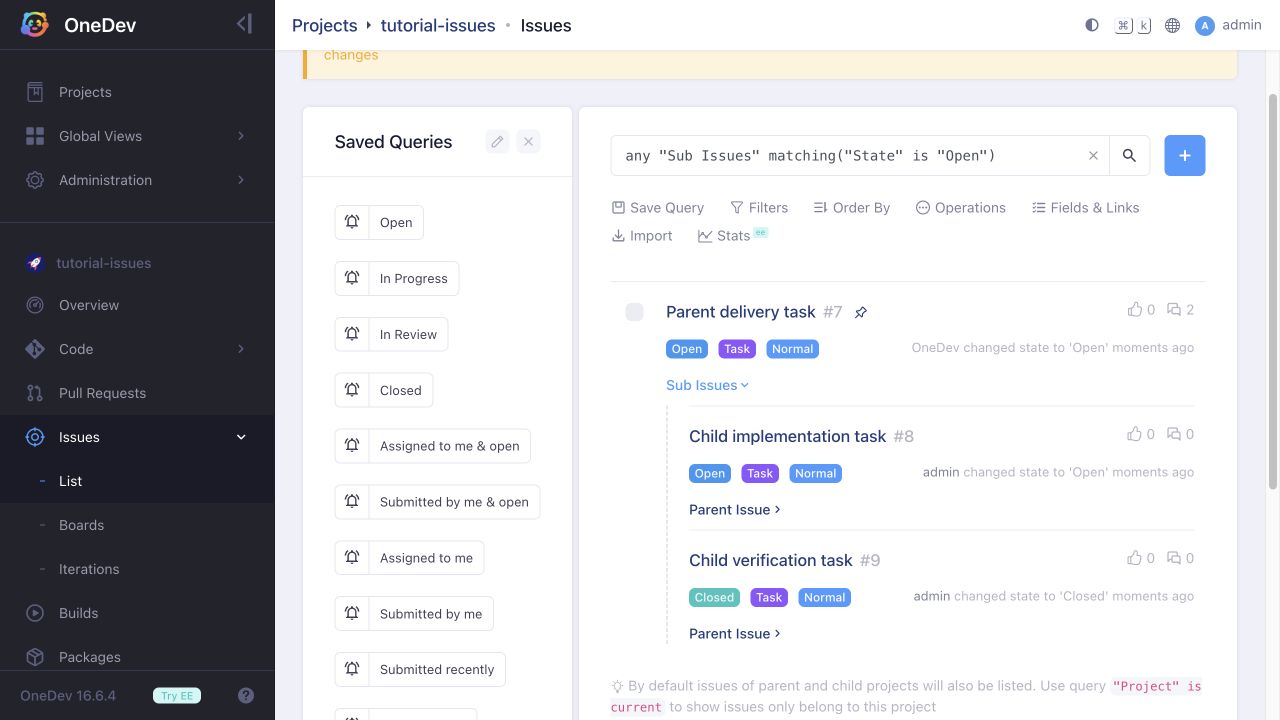
Use the exact link and state names configured in your installation.
Prevent premature closure
Open Administration > Issue Settings > State Transitions. Restrict manual transitions to Closed to issues matching:
not(any "Sub Issues" matching("State" is not "Closed"))
This allows leaf issues to close and allows parents to close only after all children are Closed. Using only all "Sub Issues" matching(...) would exclude issues with no children.
Review other manual rules too: a rule allowing Any state as its destination can still permit closure. Split such a rule into one for Closed with the condition above, and one explicitly listing the other destination states. Preserve the existing authorized roles. To limit this behavior to a test project, use:
"Project" is not "tutorial-issues" or not(any "Sub Issues" matching("State" is not "Closed"))
Close and reopen parents automatically
Default installations already include parent-state synchronization rules. Inspect them before adding duplicates. For a State of an issue is transited rule that closes a parent, use To State: Closed and:
any "Sub Issues" matching(current issue) and all "Sub Issues" matching("State" is "Closed")
For a rule that reopens a parent, use To State: Open and:
any "Sub Issues" matching(current issue) and any "Sub Issues" matching("State" is "Open")
Leave From States empty to apply from any state, or narrow it to your workflow. Here current issue is the child whose state changed. The first matching transition rule applies.
Verify with two children: closing the first leaves the parent open; closing the last closes the parent; reopening either child reopens the parent. Use normal issue state changes for this test: batch edits do not trigger state transitions of other issues.