Collaborate with AI User in Issue/PR Context
To work on issues or pull requests, an AI user relies on workspaces. In a workspace, it can read and write (if allowed) repository files freely and run desired tools in a preconfigured environment. You can also use subscription plan of coding agents, which is often more cost-effective than calling the LLM API directly.
Ensure AI User Entitlements and Permissions
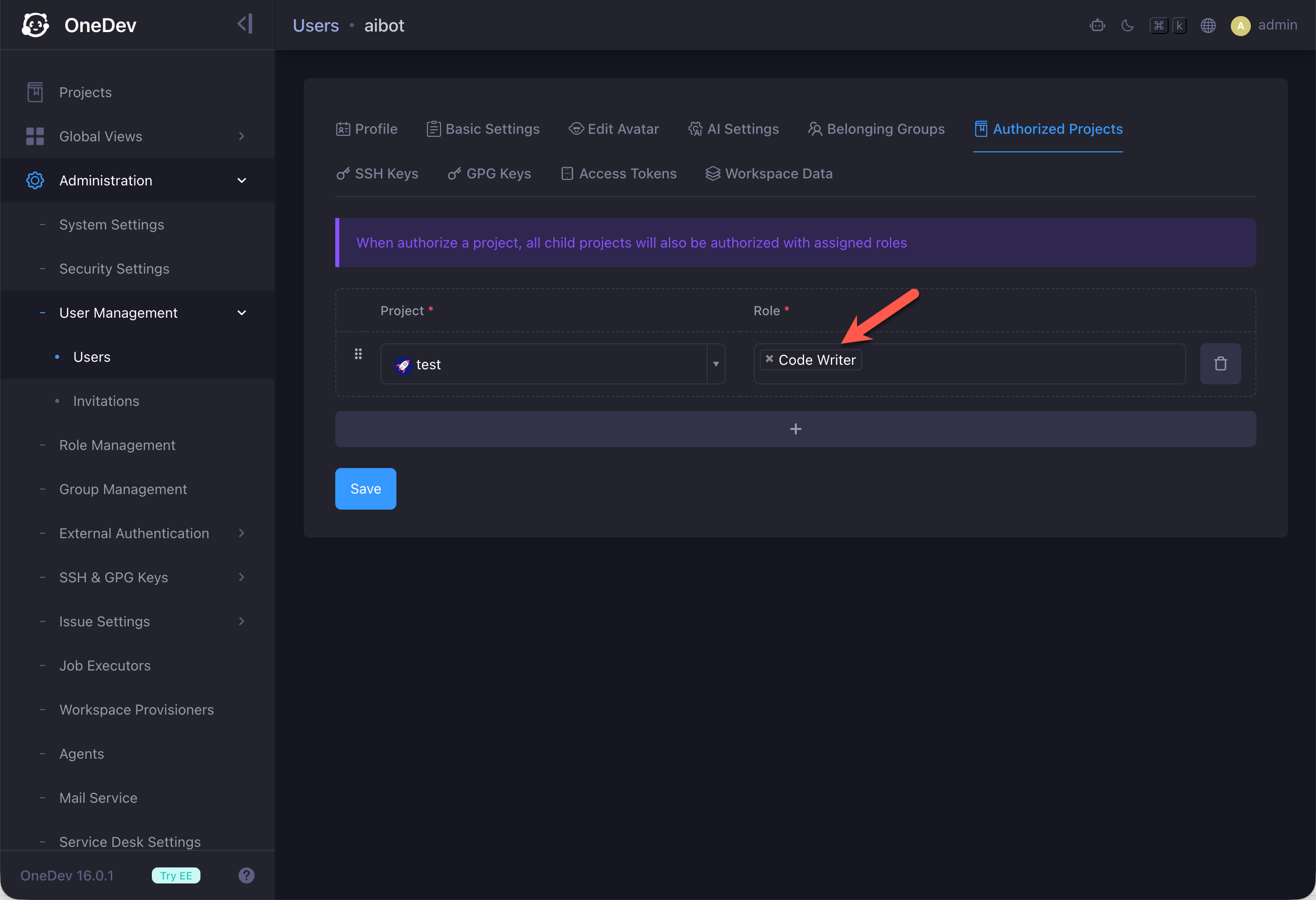
First, make sure the AI user can create workspaces on the projects it should work in. Grant the Create Workspace permission to the appropriate roles. Users with code write permission receive Create Workspace automatically.
If the AI user is only expected to answer questions—for example with a service desk style role—Create Workspace alone is enough. If it should implement issues, open pull requests, or push code changes, grant code write permission as well. For this tutorial, we grant the AI user the Code Writer role:
Next, restrict which users and projects may use the AI user. This helps prevent untrusted users or projects from abusing crafted prompts. Configure this in the entitlement settings:
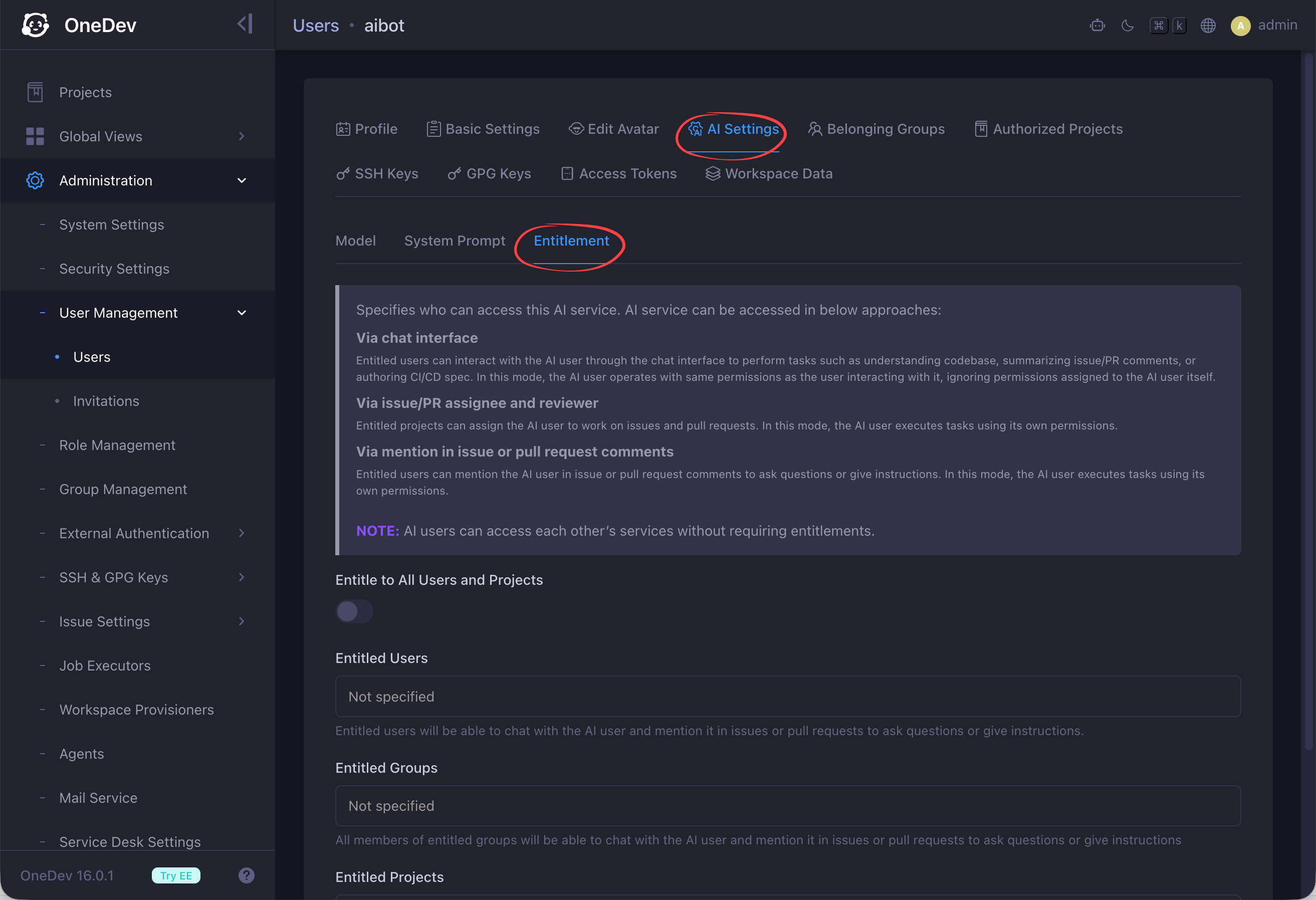
For this demo, we entitle the AI user to all users and projects.
Configure Workspace Spec
Add a workspace spec for the AI user to create workspaces from:
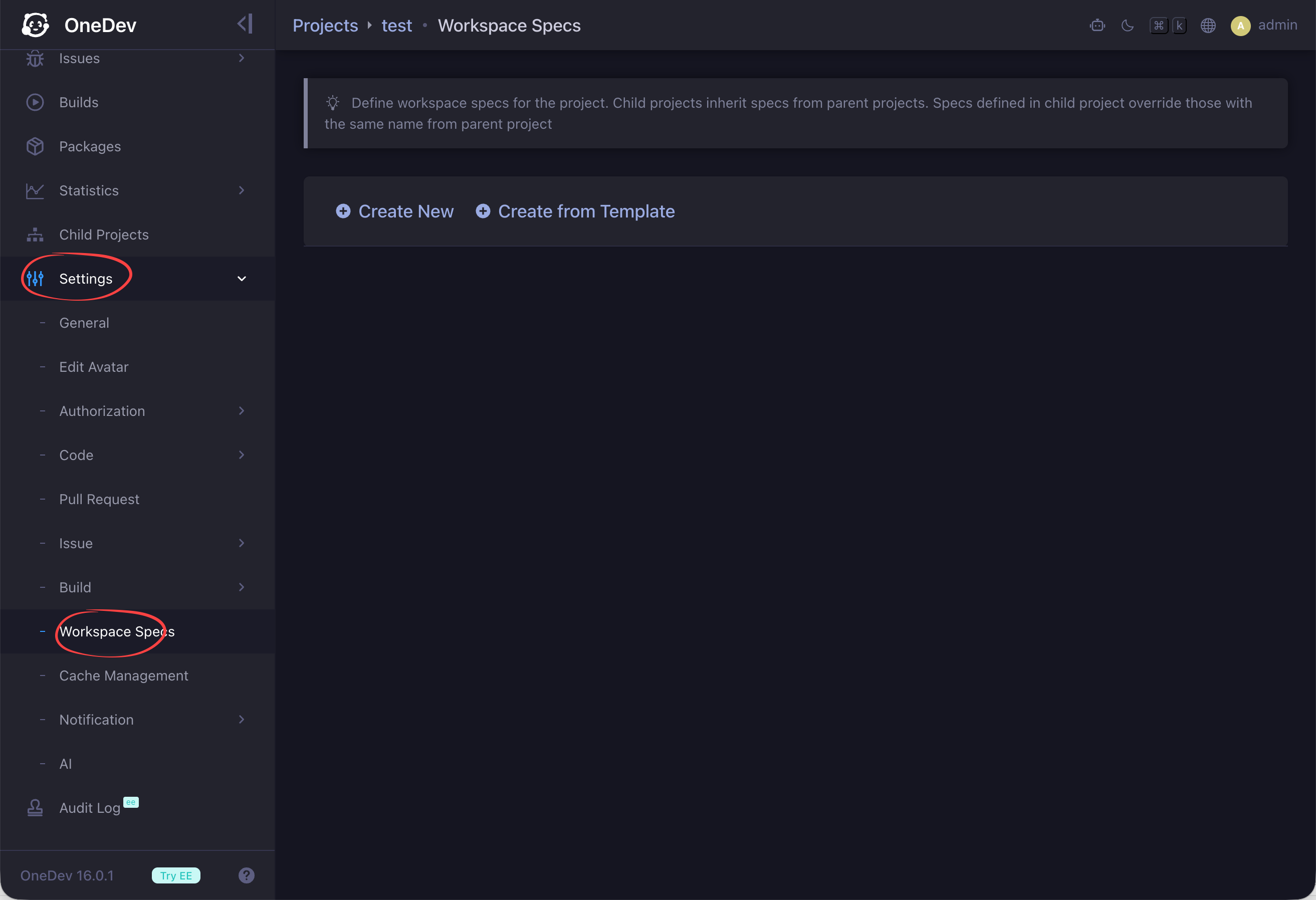
To get started quickly, create the spec from a template. For this example, choose Codex in Container, enter a name, and create the spec. Open the new spec and confirm that task automation is enabled. The Applicable AI User for Task Automation property controls which AI user may use the spec. When an AI user creates a workspace, OneDev uses the first applicable spec it finds.
Configure the Workspace
After creating a workspace spec, configure the workspace so the coding agent can authenticate and use the desired models. Start by running as the AI user:
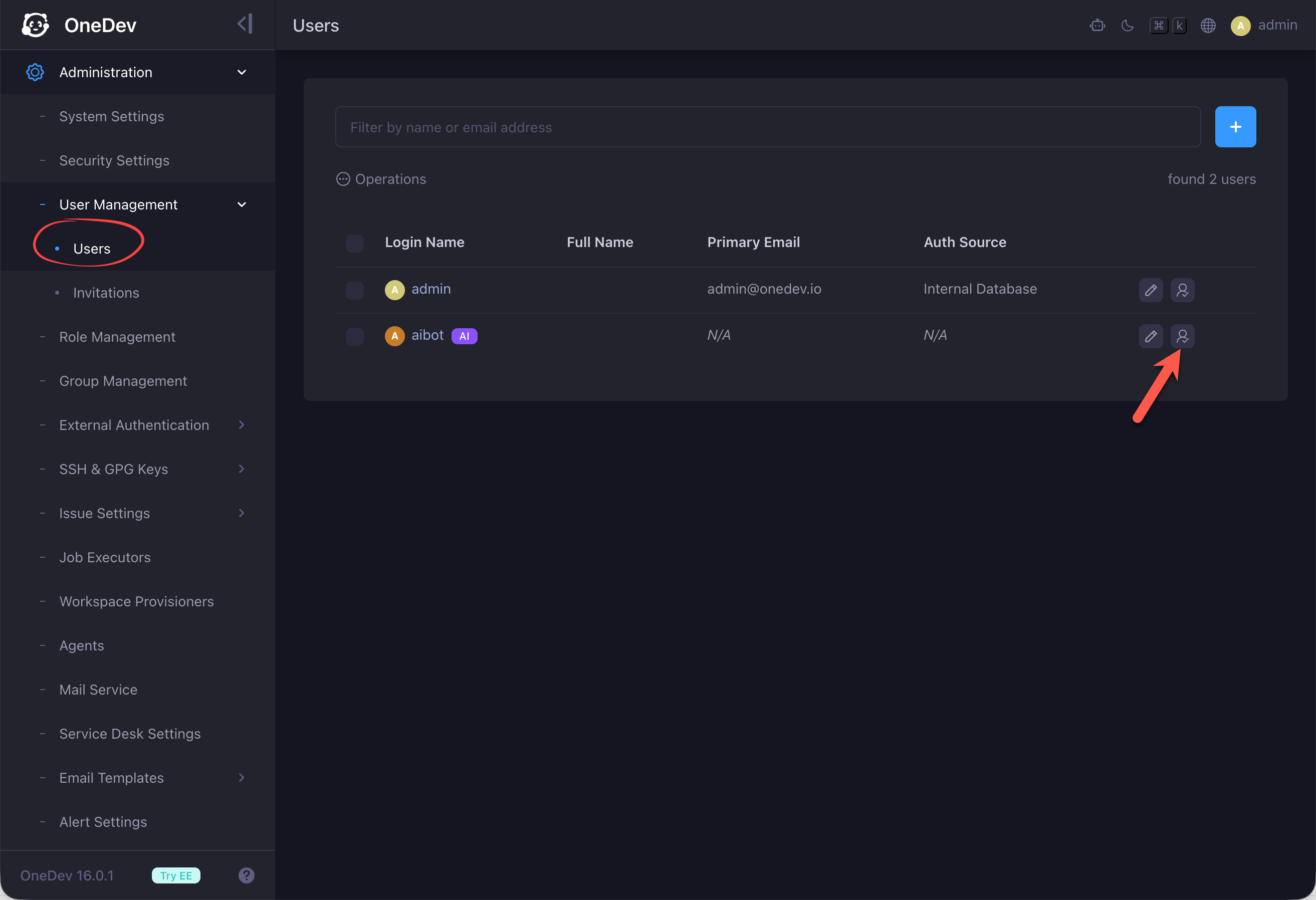
Switch to the project code page and create a workspace from the spec:
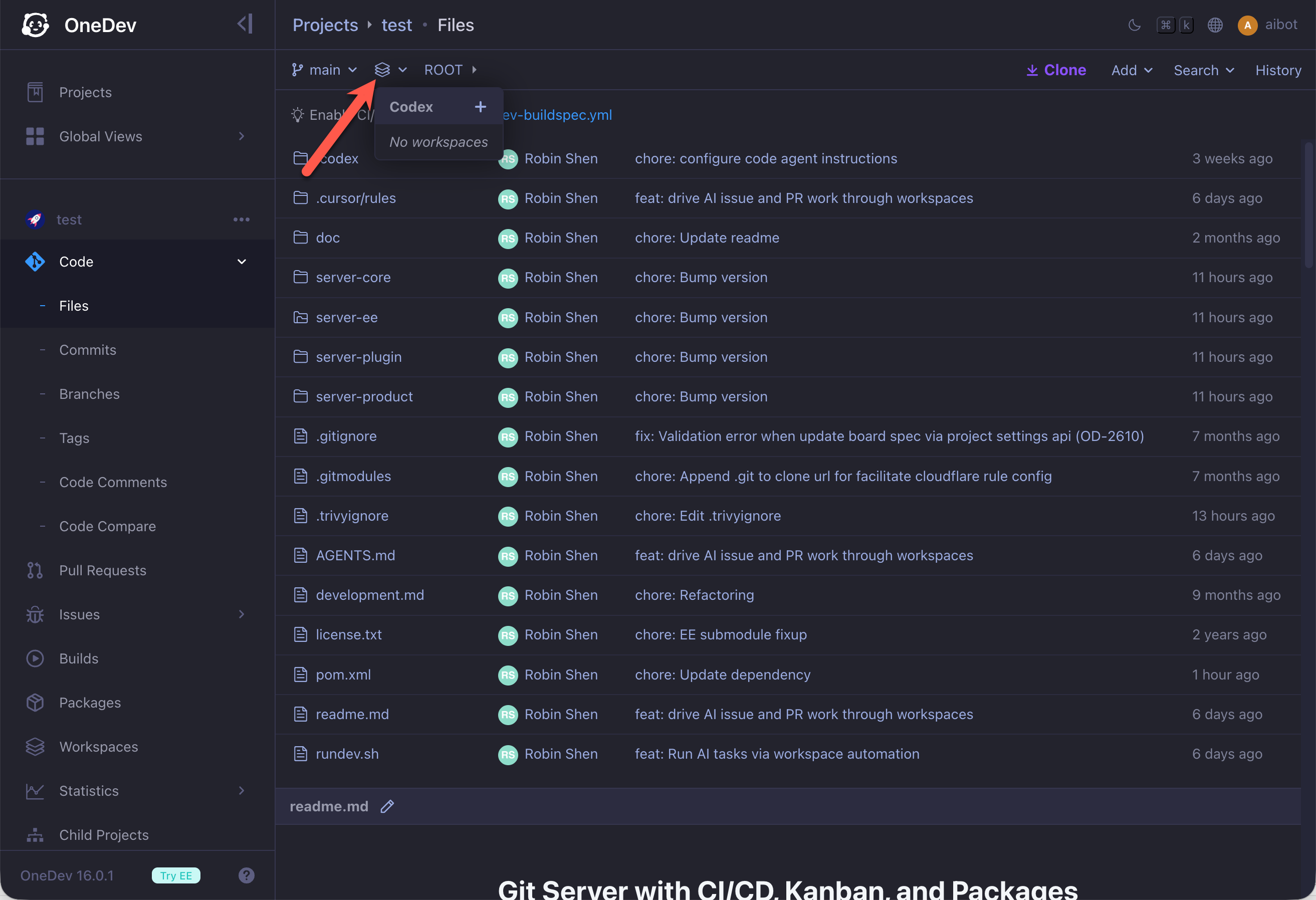
OneDev clones the repository into the workspace and starts the container. By default, OneDev pulls the container image every time a workspace starts. You can disable this in the Security Settings section of a custom workspace provisioner under Administration → Workspace Provisioners.
Once the workspace is running, the Codex CLI starts automatically for this example spec. Select Sign in with Device Code:
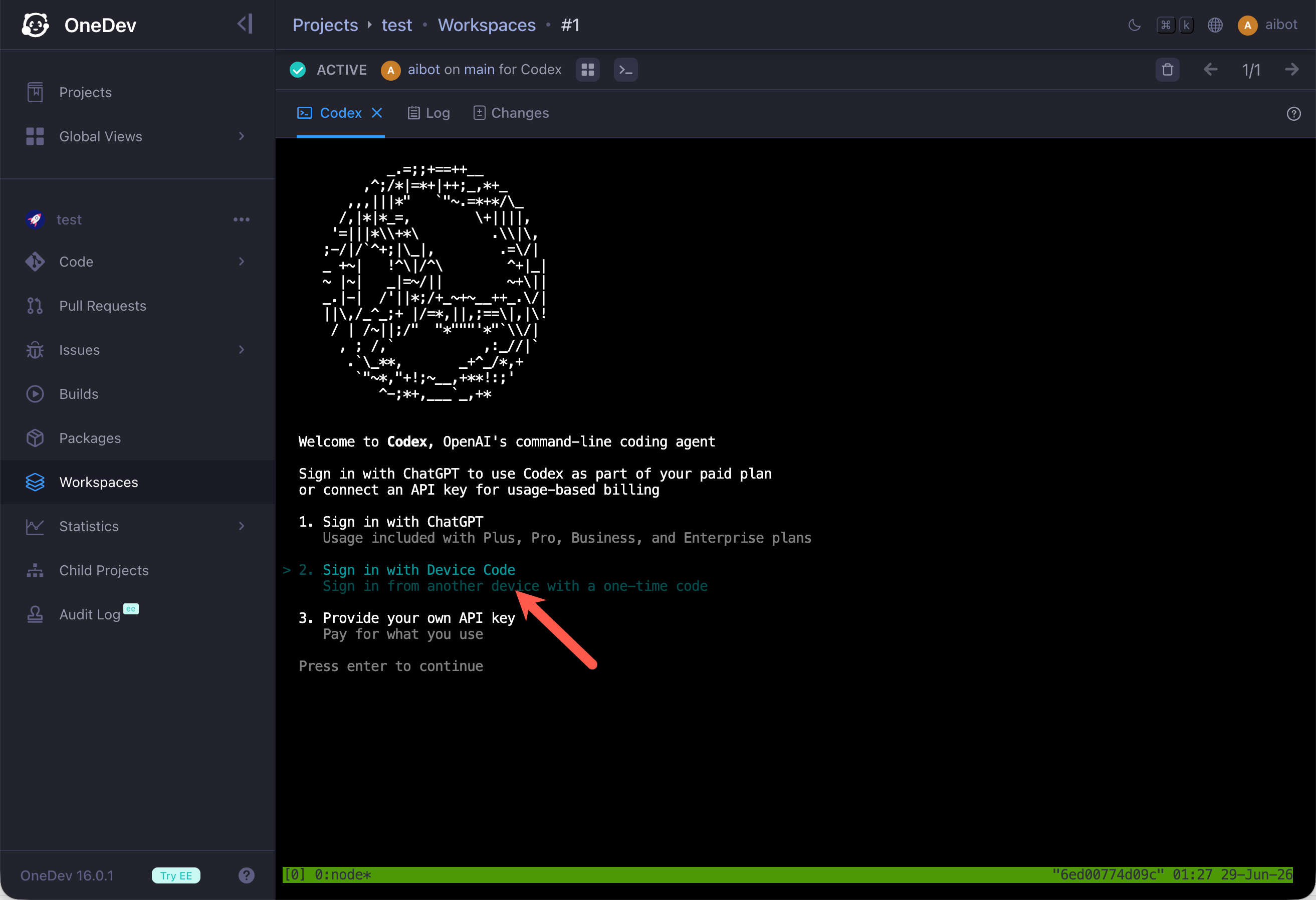
Sign in with Device Code is disabled by default in ChatGPT account settings. Enable it there before authenticating from the workspace.
Follow the on-screen instructions to authenticate, trust the workspace directory, and optionally switch to your preferred models.
Save Workspace Settings
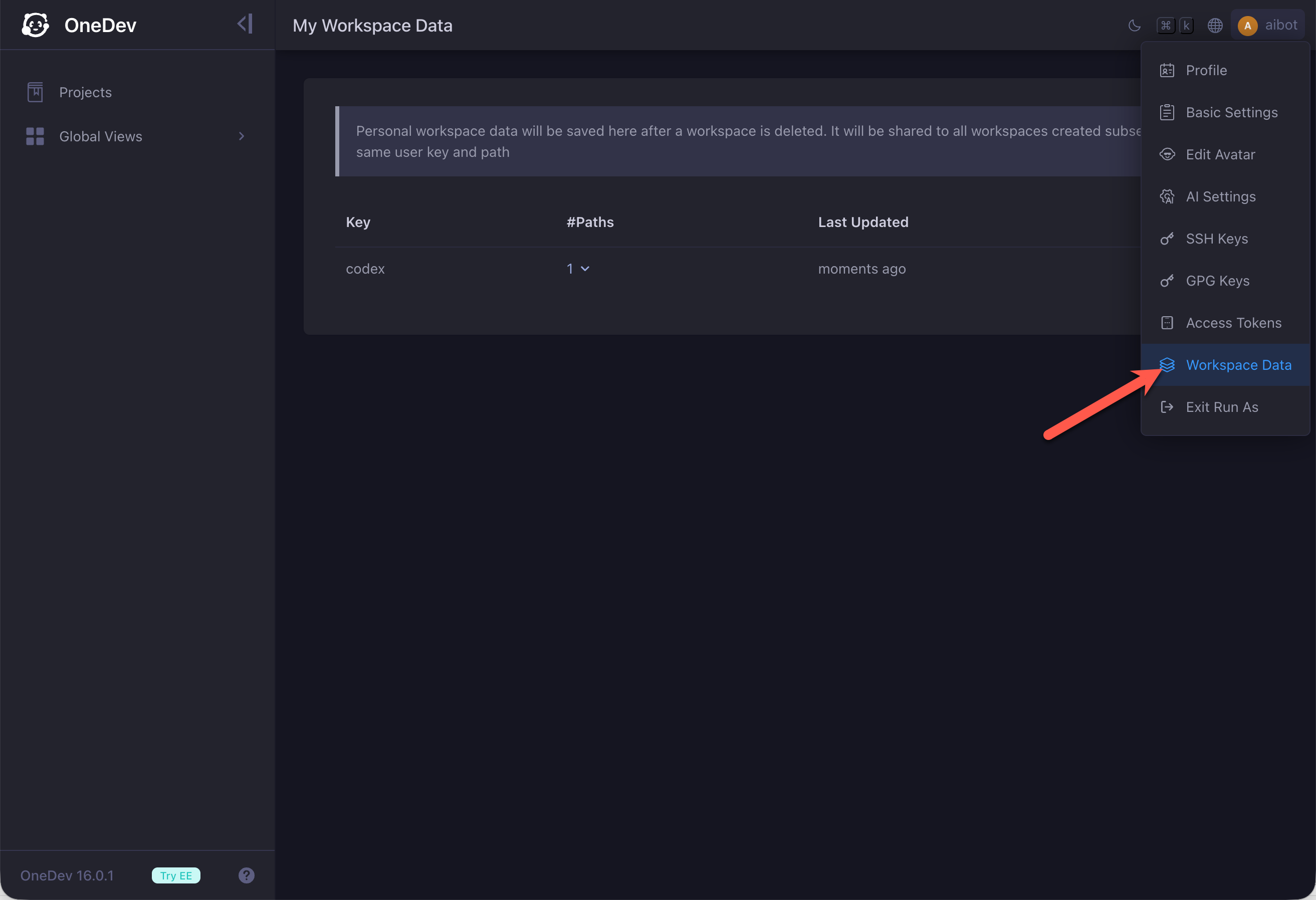
After configuring the workspace, delete it. OneDev stores the workspace settings as user data, and subsequent workspaces created by the AI user from this spec reuse them. To reconfigure, delete the workspace data:
Participate in Issues or Pull Requests
With the workspace configured, you can:
-
Assign issues to the AI user — it can implement the work, open a pull request, respond to review feedback, and fix merge conflicts and CI/CD failures automatically. See Assign Issues to AI User.
-
Add the AI user as a pull request reviewer or assignee — it can review changes, request changes, and merge pull requests automatically. See Review or Merge Pull Request.
-
Let the AI user fix failed builds — configure any CI/CD job to have the AI user attempt a fix automatically when the build fails. See Fix Failed Builds via AI User.
-
Give instructions to the AI user — mention it in an issue or pull request comment to request work, ask questions, or post plans. See Give AI User Instructions.