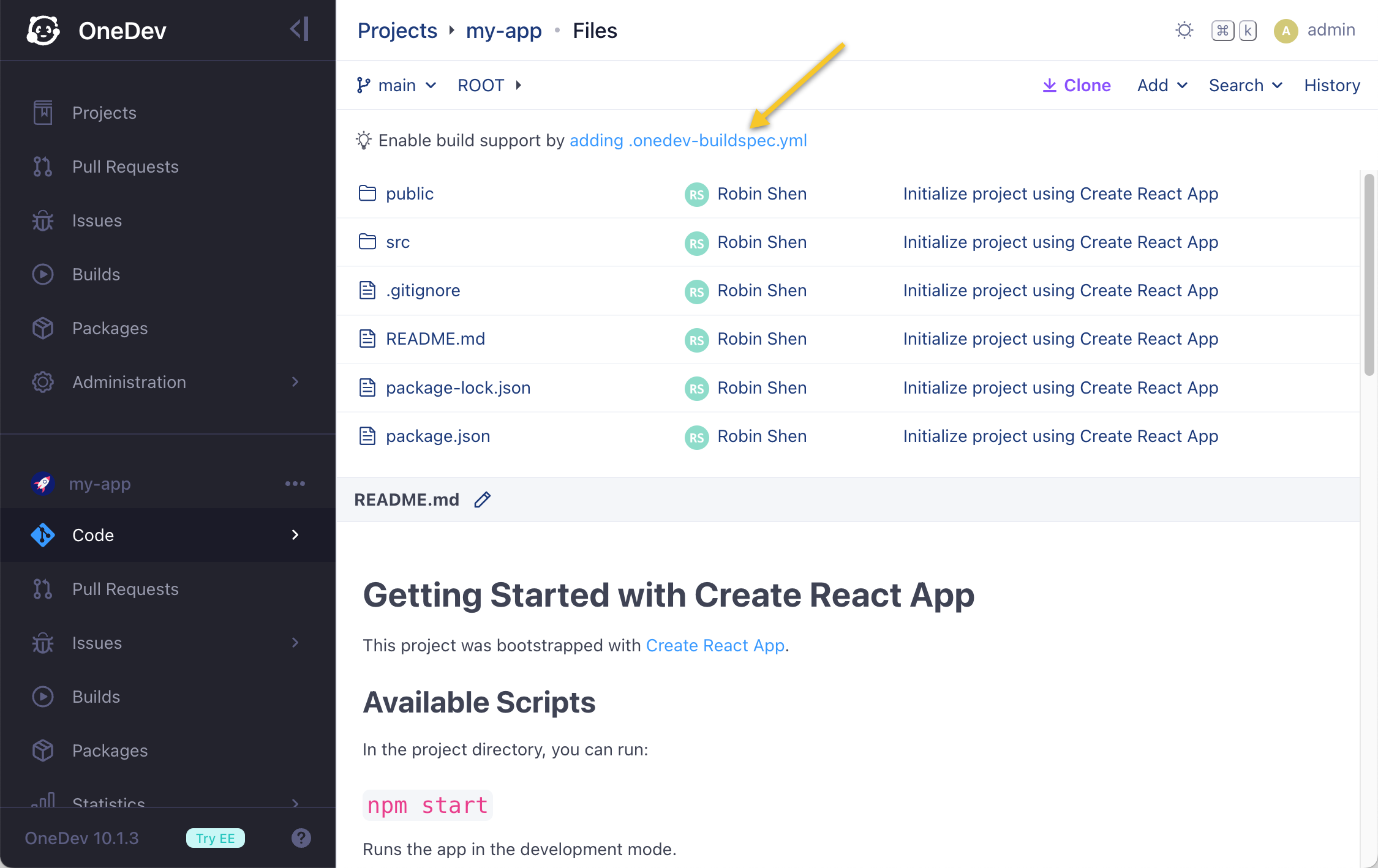
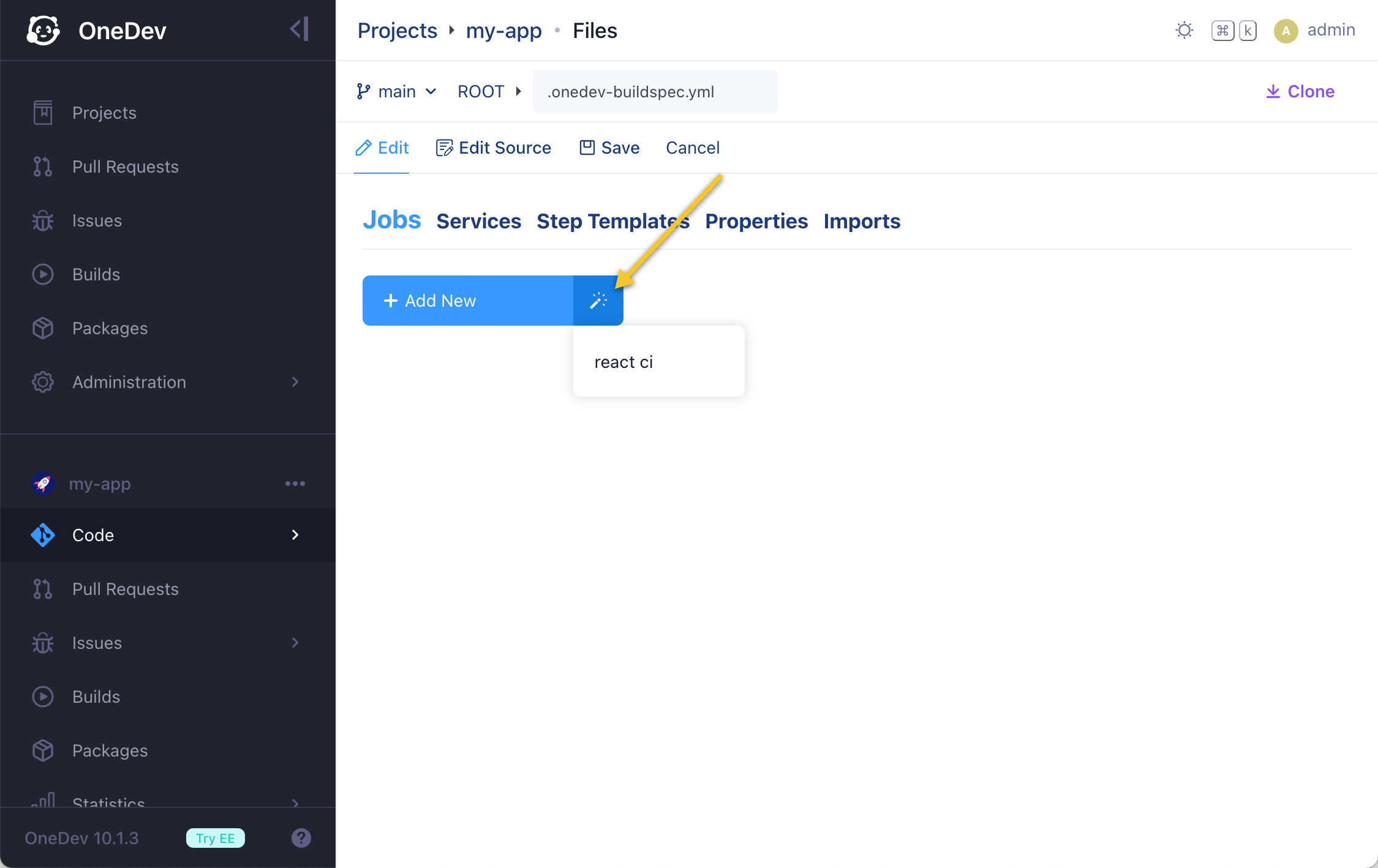
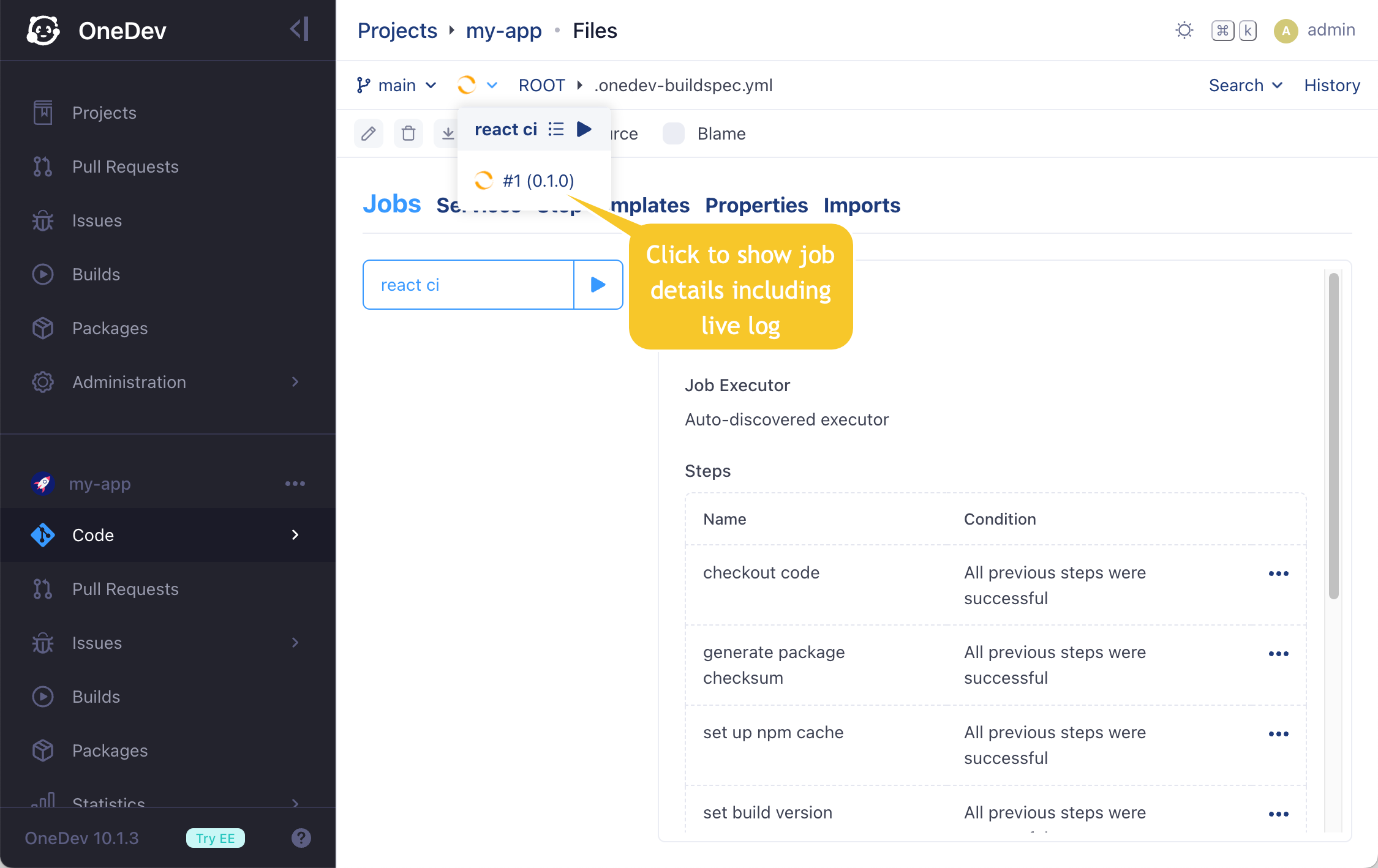
Working with Built-in AI
OneDev 14 ships with AI capabilities to make your DevOps experience smoother and smarter. This tutorial explains how to set up OneDev AI and where you can benefit from the AI integration.
Lite Model Set Up
Some capabilities require you to set up a lite AI model for performance reason:

With this setup, OneDev will be able to:
Query with Natural Language
Describe what you want with natural language and press Tab, OneDev will call AI to convert it to a structured query:

Perform Accurate Symbol Navigation
A symbol name may have multiple definitions. With the help of AI, the most likely one will be marked for easier navigation, both in source view and diff view:

Suggest Pull Request Title and Description
If multiple commits are involved when opening a pull request, OneDev will use AI to generate appropriate pull request title and description from commit messages:

Set Up AI Users
You may also add AI users to the system, and these virtual users will help you throughout the DevOps process. To add an AI user, select type AI when creating a new user:

For most cases, Claude Haiku model is suggested as it is cost effective, fast, but still powerful on tool use and code understanding. Go with Claude Sonnet or even Opus if you have a good budget.
Then decide who can access these virtual AI users via entitlement setting, and optionally specify a system prompt when interacting with it:

The AI user helps via two approaches:
As a Context Aware Assistant
You may bring out entitled AI users anytime to chat with them:

These virtual users are equipped with tools provided by OneDev based on current context to help you do various tasks. NOTE: AI user calls tools in this case with the identity of the current user, ignoring permissions assigned to itself
Codebase Understanding
While browsing files, you may ask AI any questions about the codebase.

Occasionally you might find OneDev indexing the codebase. In this case, wait for indexing to complete before asking codebase questions, as AI relies on the index to search codebase. This also applies to commit and pull request interactions below.
Commit Review
You may also switch to any commit, and ask AI to review the commit:

The review often has false positives, but can also find real bugs. Actually, it managed to find a critical security vulnerability in OneDev.
Code Snippet Understanding
You may select a code snippet either in source view or diff view and have the AI explaining it:


Help Editing CI/CD Spec
While on CI/CD spec edit page, you may ask AI to add new job or modify existing job:

Investigate Build Failure
For a failed build, you may ask the AI user to investigate why it failed:

In this example, it finds the issue that the order of the generate checksum step and set up cache is incorrect. We can go back to edit the CI/CD spec, and tell AI to fix it:

When the chat dialog is closed and opened again, it will start with a new chat. Select from chat history if you want to continue with the previous chat.
Issue and Pull Request Comments Summary

Ask Questions for Pull Request Changes
On the pull request page, AI user can help you understand the whole changes of the pull request, or a subset of changes, for instance changes since your last review:

As a Collaborating User
AI user can also work as a normal user to take part in issue and pull request discussions, or be assigned to review pull requests. In this case, it calls tools with its own identity and will be restricted by its own permissions.
Take Part in Issue and Pull Request Discussions
While discussing in issues or pull requests, you may mention an entitled AI user to let it perform tasks, and post task results as comments:

To ask follow-up questions, just add new comments mentioning it again
Add AI User as Pull Request Reviewer
You may also add AI user as reviewer of the pull request, or even include it in branch protection rules. In this case, the AI user will approve the pull request or request for changes based on its review result. Again you can mention it in comments to ask questions about the review, or even persuade it to change its mind (approve vs request for changes).
To add AI user as reviewer, please make sure that:
- The project is entitled to use the AI user
- The AI user has code read permission against the project